How do I take a partial screenshot on Windows 10 and 11?
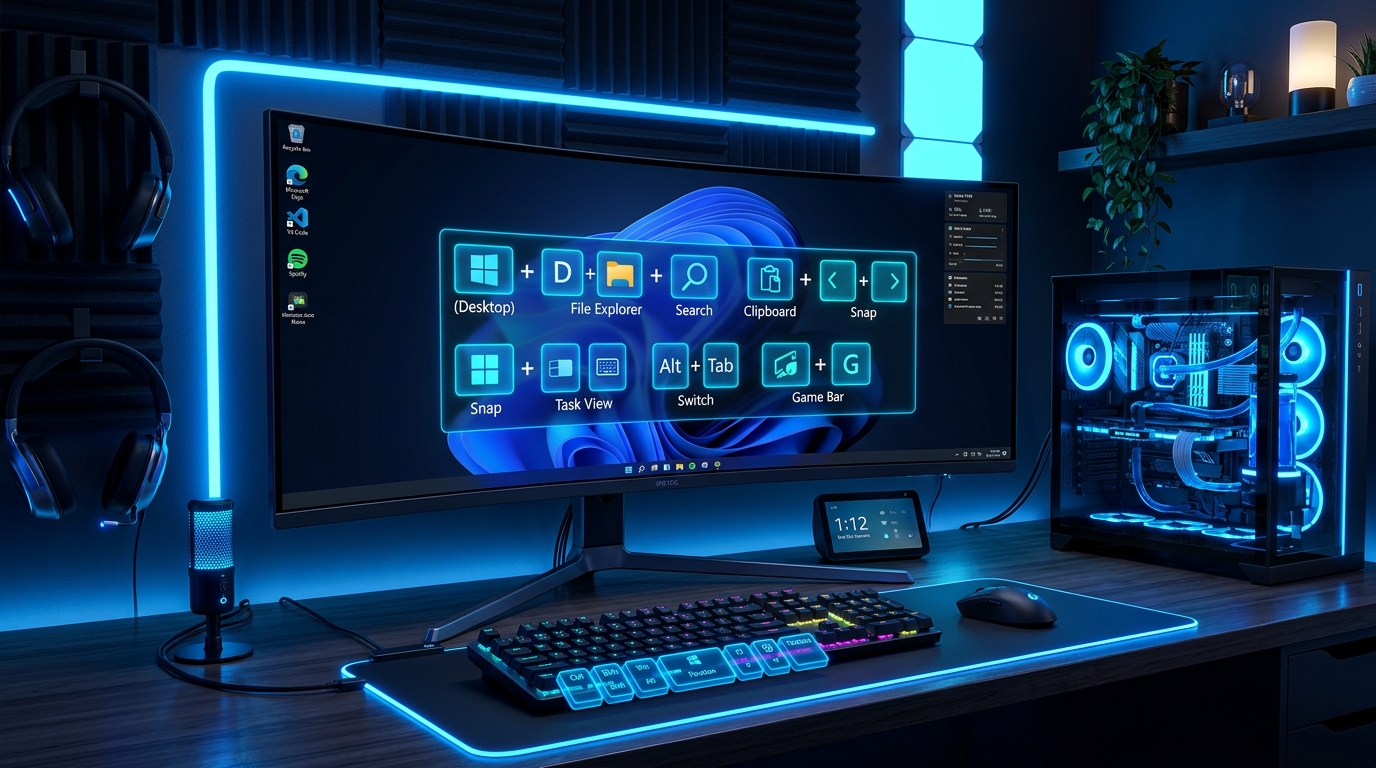
Press Windows Key + Shift + S. Your screen dims and Snipping Tool opens at the top. Drag your mouse over the screen region you want to capture. The image is saved to your clipboard automatically.
What is the keyboard shortcut for full screen screenshot on Mac?
Press Command (⌘) + Shift + 3. The full screen capture image is saved as a .png file directly on your Desktop.
What are the essential shortcuts for ChatGPT and Google Gemini?
In ChatGPT, press Ctrl + Shift + O (or ⌘ + Shift + O) to open a new chat. In Google Gemini, type @ in the prompt box to pull in data from Gmail, Drive, YouTube, or Google Maps.
How do I reopen an accidentally closed browser tab?
Press Ctrl + Shift + T (or ⌘ + Shift + T on Mac) in Chrome, Edge, Safari, or Firefox to restore your last closed tab instantly.
What is ChatGPT Deep Research and how is it different from regular ChatGPT?
ChatGPT Deep Research is an autonomous AI research agent that independently browses 20–100+ websites, PDFs, and academic papers, synthesizes information across all sources, and delivers a comprehensive cited report. Unlike regular ChatGPT which answers in seconds from 1–2 sources, Deep Research takes 5–30 minutes and is powered by OpenAI's advanced o3 reasoning model. It's available on ChatGPT Plus ($20/mo), Team, Pro, and Enterprise plans.
How do I trigger Circle to Search on Android?
On Android 14 and Android 15 devices (Pixel, Samsung Galaxy, and select other brands), long-press the home bar at the bottom of the screen. A glowing border appears around the display — then draw a circle, highlight, or scribble around any image, text, or object on the screen to search it instantly with Google.
What are the most useful Linux terminal keyboard shortcuts?
The most essential Linux terminal shortcuts are: Ctrl + C (stop running process), Ctrl + L (clear terminal screen), Ctrl + A (move cursor to start of line), Ctrl + E (move cursor to end of line), Ctrl + R (reverse search command history), Tab (autocomplete commands and file paths), and Ctrl + Alt + T (open a new terminal window in Ubuntu/GNOME).
What is the fastest way to switch between virtual desktops on Windows 11?
Press Ctrl + Win + Left/Right Arrow to instantly switch between virtual desktops (Task View workspaces) on Windows 11. To create a new desktop press Ctrl + Win + D, and to close the current desktop press Ctrl + Win + F4. On Mac, use Ctrl + Left/Right Arrow to switch between Spaces.
How do I use VS Code with GitHub Copilot AI shortcuts?
In VS Code with GitHub Copilot installed: press Tab to accept an AI suggestion inline, Esc to dismiss it, Alt + ] to see the next suggestion, Ctrl + Enter to open the Copilot suggestions panel with multiple options, and Ctrl + Shift + I to open the Copilot Chat sidebar for conversational AI coding assistance.