Table of Contents
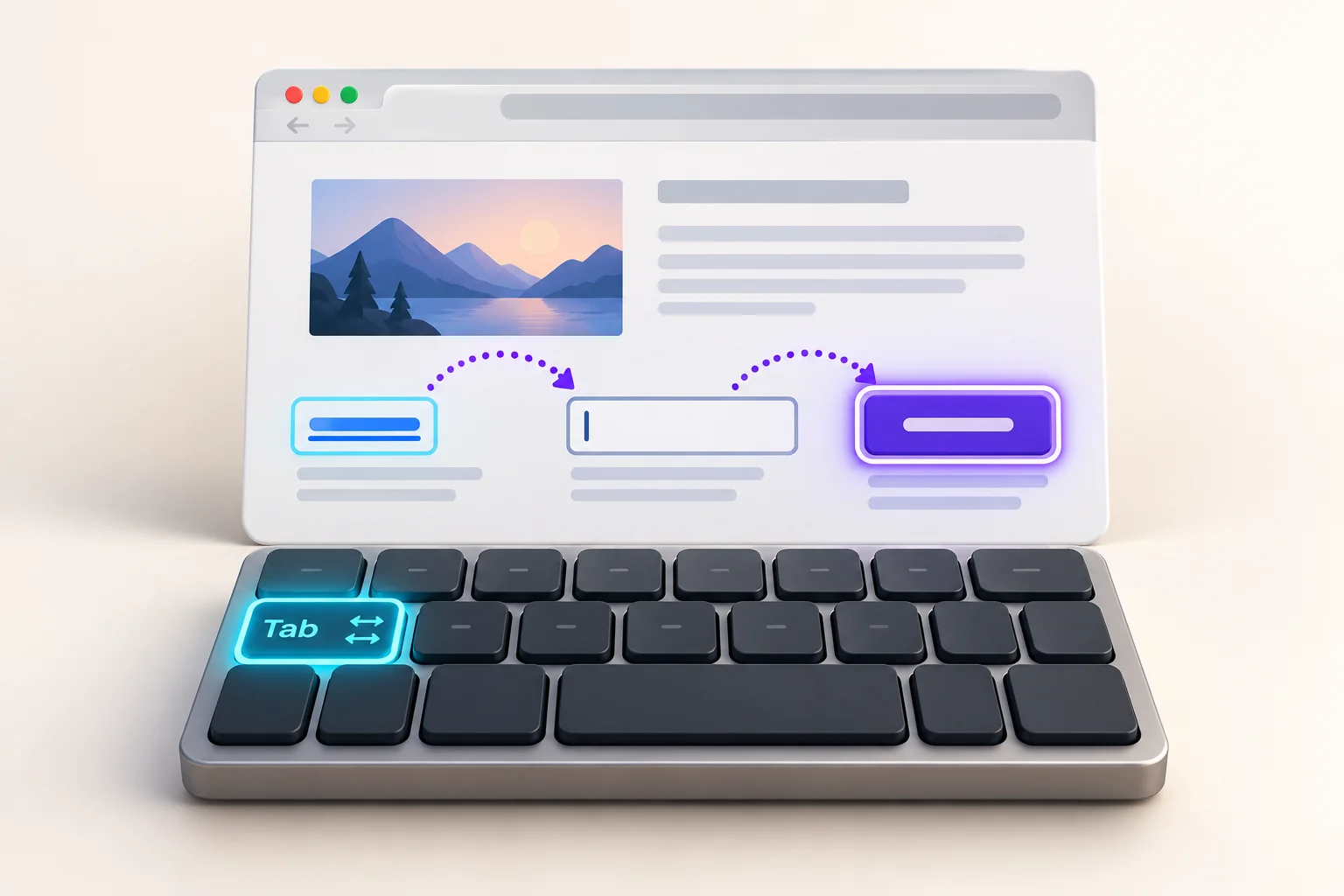
Keyboard navigation becomes easier when you know which control will receive the next keypress. The active browser tab, a highlighted link, a text field, and the address bar are different destinations for input. This guide uses a short practice session to help you recognize those differences without submitting a real form.
Start on a page you can safely explore
Choose a public help page or a local practice page with a few links and fields. Avoid checkout, account settings, and forms containing unsaved work. Your first objective is simply to identify the current keyboard focus and move it deliberately.
Take your hands off the mouse and press Tab once. Look for a visible outline, caret, or highlighted control. The focus indicator may be subtle, so move slowly. A page that hides the indicator makes keyboard navigation difficult; pressing faster does not solve that problem.
Move forward, then retrace your steps
Tab commonly moves to the next focusable control, while Shift + Tab moves backward. Practice advancing through three controls and then returning to the first. Read each control's label before activating it. A link and a button can look similar while performing different actions.
On a clearly identified navigation link, Enter usually follows the link. Space commonly activates a focused button, but it may scroll the page when the page itself has focus. Check the type of control and its visible state rather than assuming one key always has the same effect.
On macOS, system and browser keyboard-navigation settings can affect which controls receive focus. If Tab reaches text boxes but appears to skip other controls, consult the browser's current keyboard and accessibility help for that setup.
Separate page controls from browser controls
In desktop Chrome, F6 moves focus among browser interface areas. Use it deliberately when you need to leave the page controls. Observe the highlighted area after each press. An operating system or laptop function-key setting can intercept a function key, so check your keyboard configuration if the expected movement does not occur.
This distinction helps explain a common puzzle: typing a word appears to do nothing because focus is on a link or toolbar instead of an input field. Locate the intended text field, confirm the caret, and only then type.
Practice a form without sending it
Use a disposable form or a search field. Move to the first field, type sample text, then press Tab to reach the next control. Use Shift + Tab to return and edit the sample. Stop before any button that sends a message, changes an account, or confirms a transaction.
Some widgets use arrow keys after receiving focus. A select menu, radio group, or tab panel may behave differently from a plain text box. Read the label and inspect changes after a keypress. If a menu opens unexpectedly, Escape often dismisses it, but confirm that the original page remains as intended.
Diagnose a stuck or invisible focus
If you lose your place, pause and inspect the screen instead of issuing repeated activation keys. A dialog, embedded frame, or custom widget may have captured focus. Try reversing the last navigation step and look for a visible indicator. If the page cannot be used reliably by keyboard, use another supported input method and report the specific control that failed.
For a useful report, include the browser, operating system, page URL, starting control, and exact sequence of keys. A reproducible example helps distinguish a page problem from a custom shortcut or system preference.
Reference and next exercise
Consult Chrome's keyboard shortcut reference for platform-specific controls. Continue with our browser navigation guide. Guidance reviewed 22 October 2026.

Written by Challenge Hub Team
Challenge Hub publishes practical software references under a shared editorial name. This byline does not claim a professional credential or independent product endorsement. Report corrections with the page URL, software version, and observed behavior.


Discussion & Comments
0 Comments