Table of Contents
Replacing a repeated phrase across a project is useful when you understand the search scope. It is also easy to change a filename, example, or identifier that should stay untouched. This exercise uses a few disposable files so you can observe the result before applying the technique to real work.
1. Build a tiny sample workspace
Create an empty practice folder and open it in VS Code. Add three text files: notes.txt, draft.txt, and archive.txt. Put the phrase launch checklist in the first two files and old launch checklist in the third. Add launching checklist on a separate line in notes.txt.
Your task is to change the exact phrase in the first two files to release checklist while preserving the archive and the word launching. Write down those expectations before starting. A clear expected result makes it easier to notice an overly broad replacement.
2. Distinguish current-file search from workspace search
Ctrl + F on Windows or Linux searches the current editor; Command + F does so on Mac. For a search across the opened folder, use Ctrl + Shift + F or Command + Shift + F. Confirm the workspace name and inspect the result groups before editing.
Search for launch checklist. Expand the matching files and read the surrounding lines. If a file is absent, check the include and exclude fields and the search settings. An empty result list can reflect scope or ignore rules, rather than proving the text is absent.
3. Narrow the scope before replacing
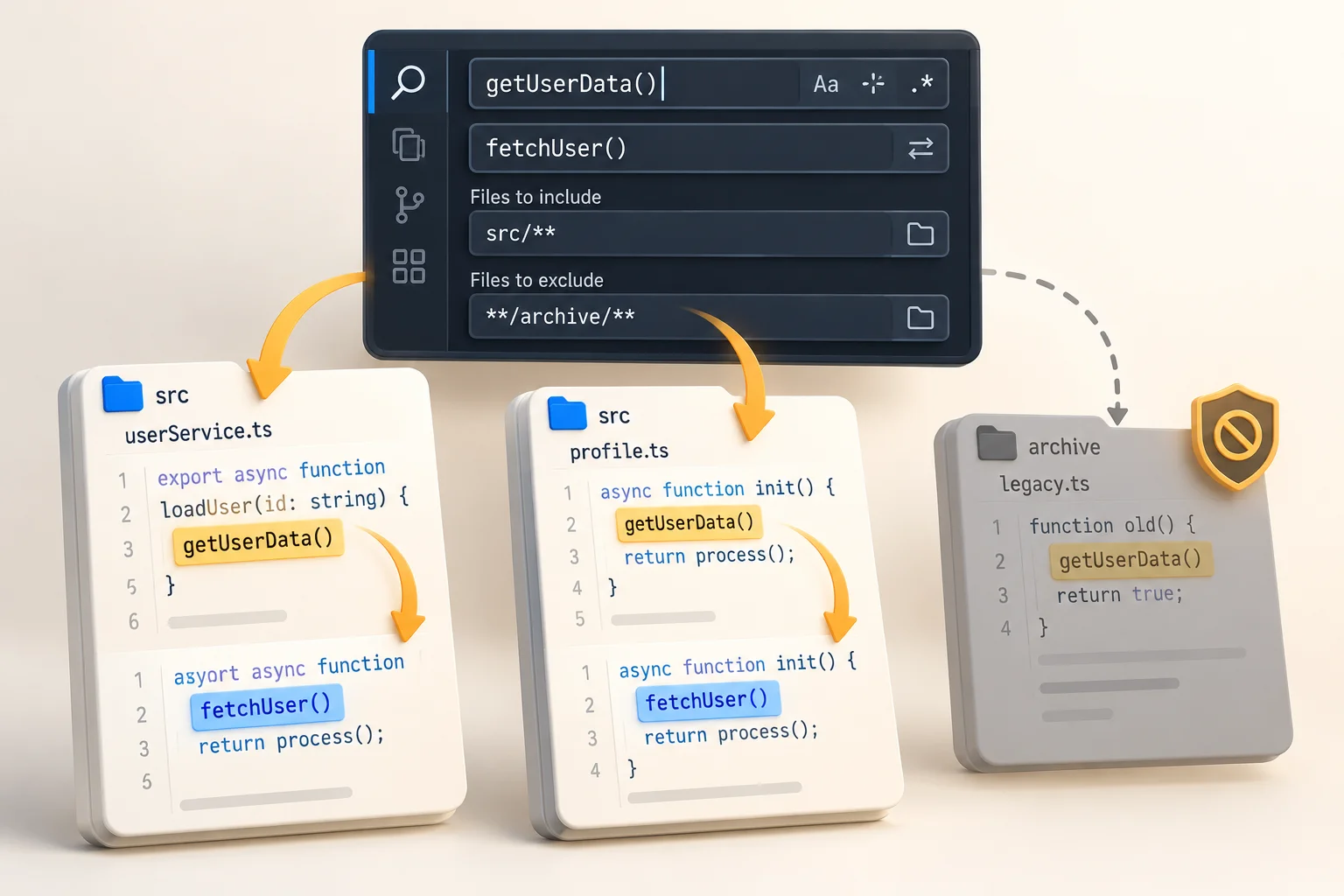
Use the search details controls to include only notes.txt and draft.txt for this exercise. Confirm that archive.txt no longer appears in the results. If using a folder pattern in a larger project, test that pattern on a search first instead of discovering its effect after a bulk edit.
Case matching, whole-word matching, and regular expressions change what the search means. Begin with a literal phrase and change one option at a time. Regular expressions are useful when a pattern is required, but an unnecessary pattern makes a simple replacement harder to inspect.
4. Preview and apply a small replacement
Expand the Replace field and enter release checklist. Review the proposed changes. Replace one occurrence first, inspect its file, and then apply the remaining intended changes. Do not treat a large result count as proof that every match should be changed.
Search for both the old and new phrases afterward. In the sample, the first two files should contain the new phrase, archive.txt should retain the old phrase, and launching checklist should stay unchanged. This second search checks outcomes rather than merely confirming that the Replace button ran.
5. Review real project changes separately
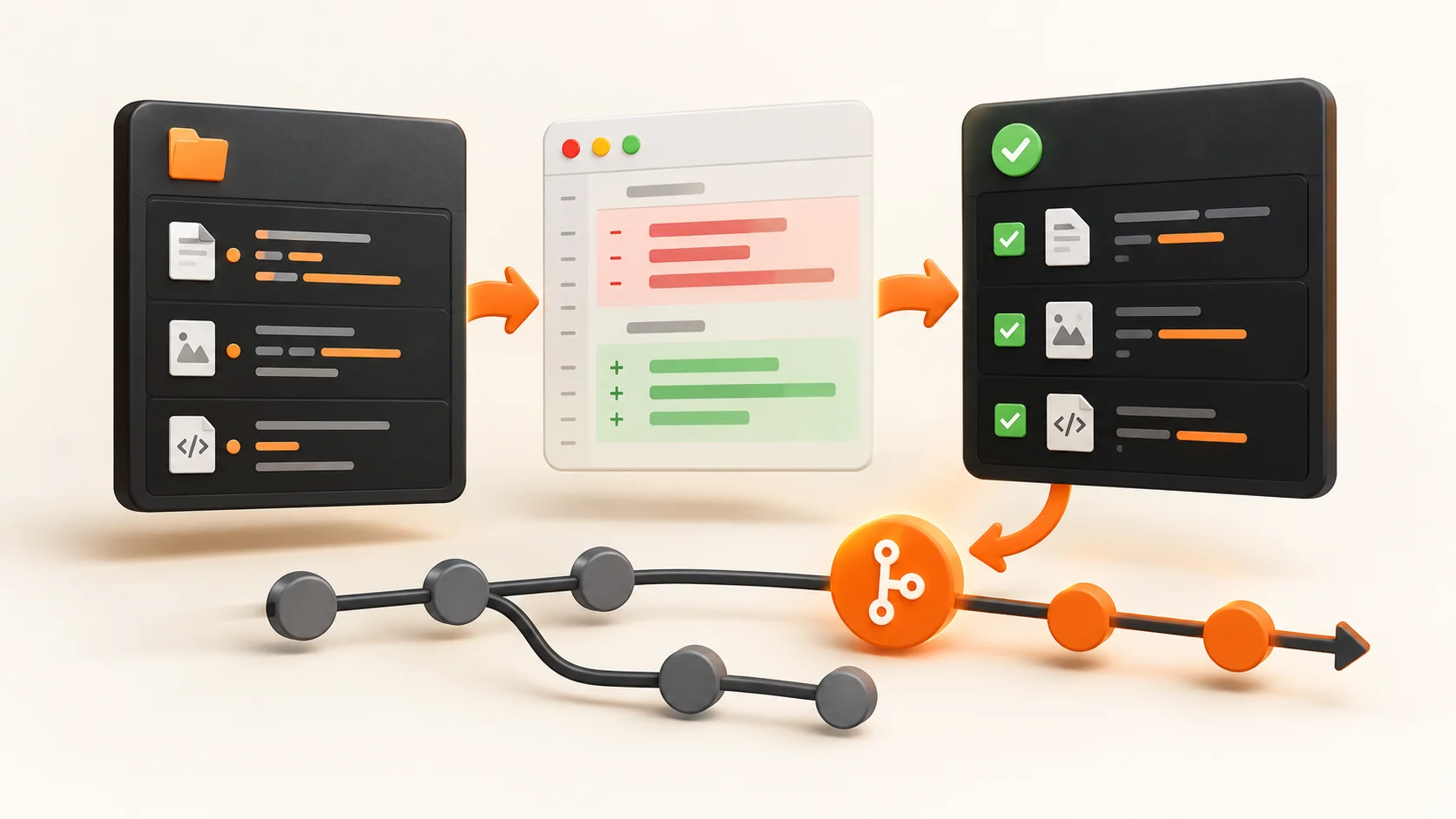
In a repository, inspect the diff before committing. Compare each changed file with the task you intended. If a replacement affected an unexpected area, stop and review the change before using another bulk operation. Keep unrelated edits separate so they are not mistaken for the replacement's effects.
Text replacement is not the same as a language-aware symbol rename. For a code identifier, inspect whether the editor's Rename Symbol command is more appropriate. Either method still needs a diff review and checks relevant to the project. A successful search operation does not prove that the resulting program works.
References and related practice
Consult VS Code's search and replace documentation and our developer shortcut guide. Custom keybindings can differ from the defaults. Instructions reviewed 22 October 2026.

Written by Challenge Hub Team
Challenge Hub publishes practical software references under a shared editorial name. This byline does not claim a professional credential or independent product endorsement. Report corrections with the page URL, software version, and observed behavior.


Discussion & Comments
0 Comments